Shopify Plus · Help center
Install. Configure.
Validate with confidence.
A practical guide to Addrexx checkout address validation, from adding the app block to testing Shop Pay.
Install Addrexx ↗ Start installation ↓
Jump to a section
1. Install the app2. Add checkout block3. Validation rules4. Countries & regions5. Shop Pay6. Launch checklist7. Troubleshooting FAQ8. Feature videos9. Get supportBrowse the rules and FAQs below, or search by keyword.
01 · Install the app
Start in the Shopify App Store.
- Open Address Validation by Addrexx and select Install.
- Follow Shopify’s installation screen and select Install again where prompted.
- Review the approval screen and select Approve if you want to proceed.
- Open the Addrexx dashboard. Configure the Shopify Extension (Shopify Plus Only) settings for this checkout integration.
Manual pp. 2–3. App installation, permissions, and any billing approval must be completed by your store’s authorized user.
View original manual screenshots


02 · Add the checkout block
Make Addrexx part of your checkout.
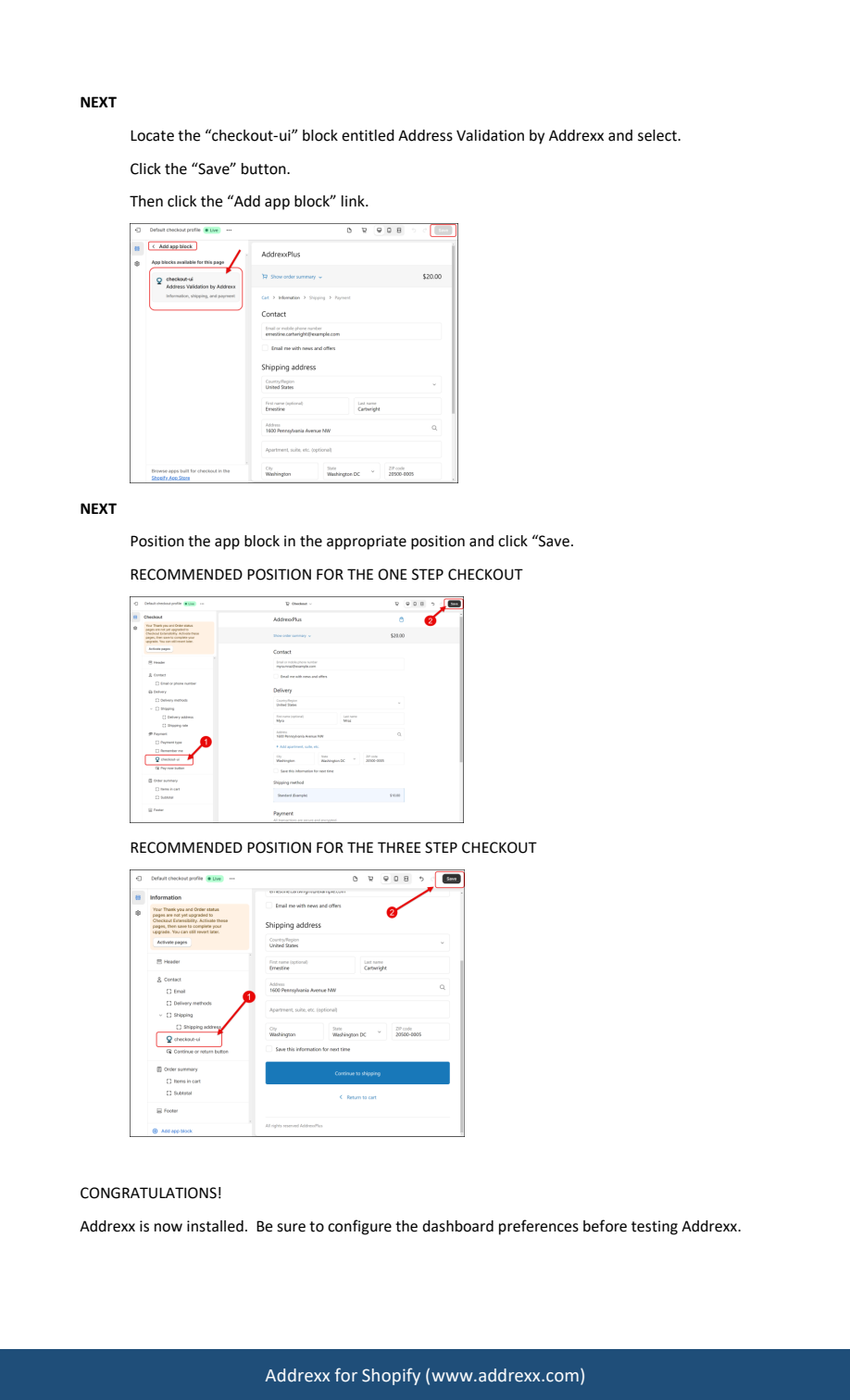
- In Shopify, open the store’s Checkout settings and choose Customize for the checkout you intend to use.
- Select Add app block, locate Address Validation by Addrexx, and select the checkout-ui block.
- Save the change. If the editor asks you to add or position the block, complete that step and save again.
- Position the block beneath the shipping-address fields. The manual illustrates the Delivery area for one-page checkout and the Shipping address area within Information for three-step checkout.
Installing the app does not replace adding and saving its checkout block. Configure the dashboard preferences before testing.
View original manual screenshots
03 · Configure validation rules
Match the rules to how you ship.
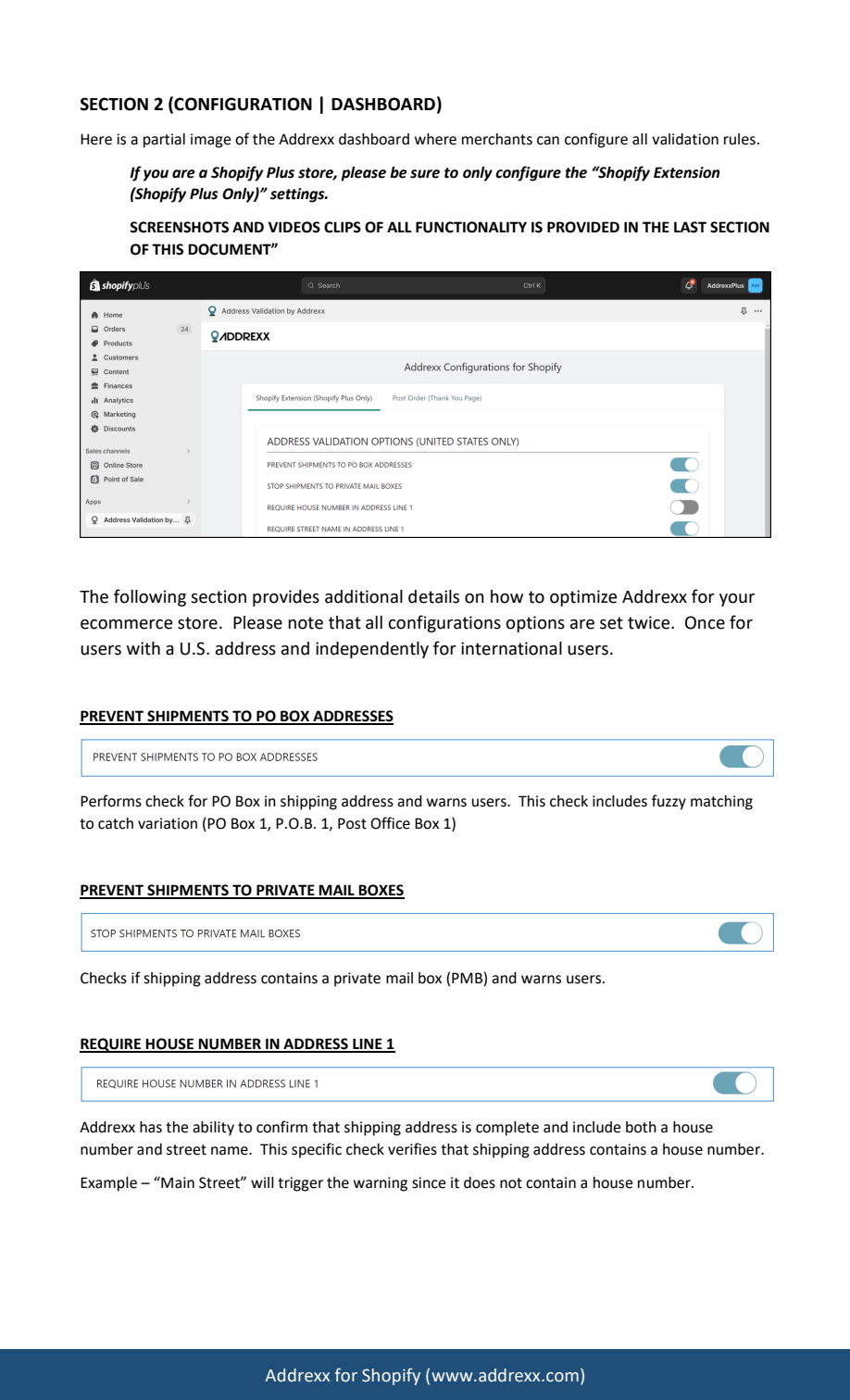
Review U.S. and international settings independently. The manual describes separate configurations for the two address groups; some features are U.S.-only.
Addrexx can present a correction for the customer to review. When the customer accepts it, the Shopify shipping address is updated.
PO boxes U.S. + international
Warn when an address contains a PO box, including variations such as P.O.B. or Post Office Box.
Check it: Test supported variations when this rule is enabled.
Manual p. 5
Private mailboxes (PMB) U.S. + international
Check for private mailbox addresses and warn the customer.
Check it: Use a supported PMB example to check the prompt.
Manual p. 5
House number U.S. + international
Check that address line 1 includes a house number.
Check it: The manual uses Main Street as an example missing a number.
Manual p. 5
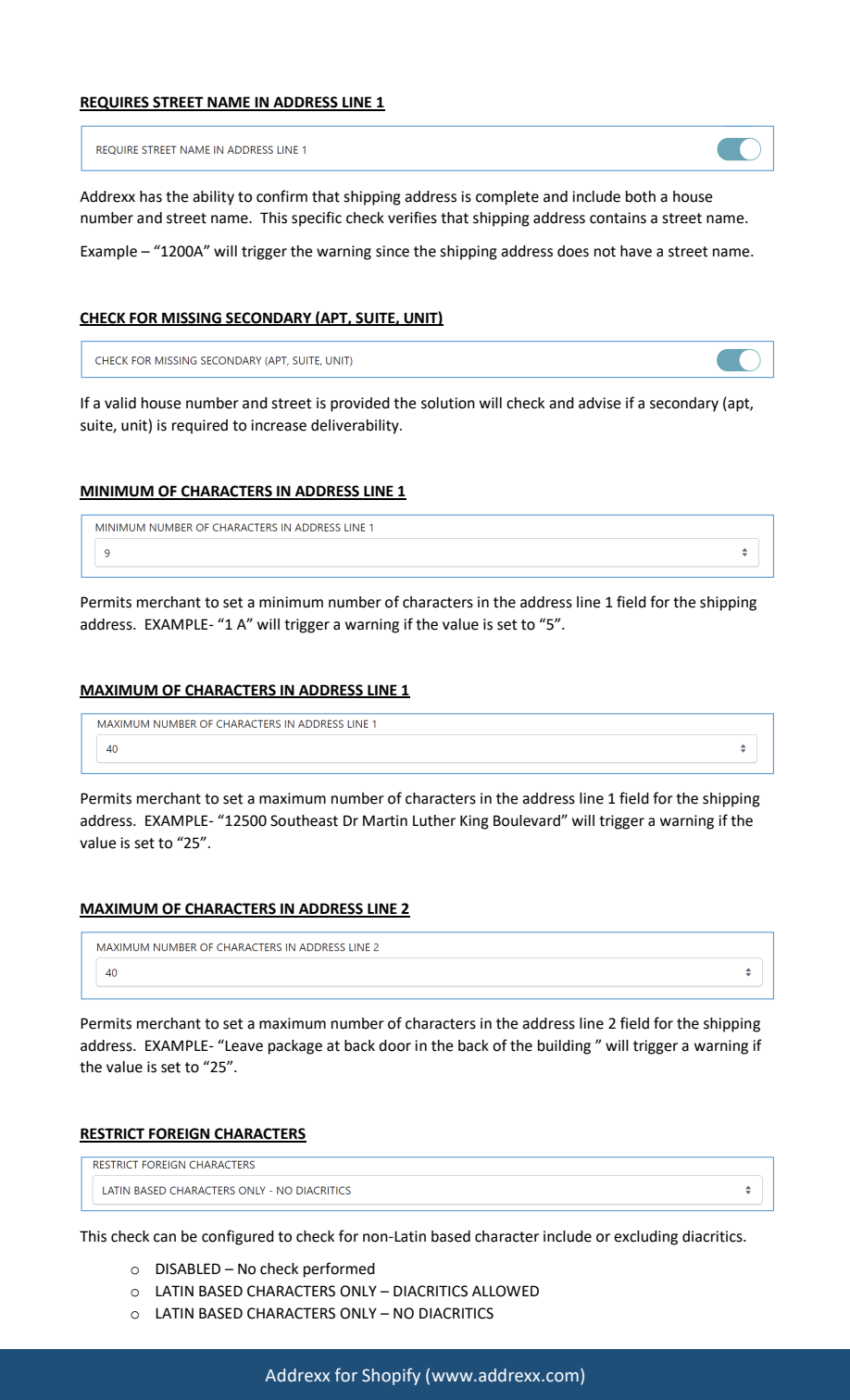
Street name U.S. + international
Check that address line 1 includes a street name.
Check it: The manual uses 1200A as an example missing a street name.
Manual p. 6
Apartment, suite, or unit U.S. only
Flag an address where secondary information may be required and prompt the customer to add it.
Check it: Test a supported U.S. address that requires a unit, plus one that does not.
Manual p. 6
Minimum address line 1 length U.S. + international
Set the minimum number of characters permitted in address line 1.
Check it: Example: 1 A triggers the warning when the minimum is 5.
Manual p. 6
Maximum address line 1 length U.S. + international
Set the maximum number of characters permitted in address line 1.
Check it: Test a street address that exceeds your chosen limit.
Manual p. 6
Maximum address line 2 length U.S. + international
Set the maximum number of characters permitted in address line 2.
Check it: Test lengthy delivery instructions against your chosen limit.
Manual p. 6
Character restrictions U.S. + international
Choose no character check, Latin-based characters with diacritics, or Latin-based characters without diacritics.
Check it: Check examples with accented and non-Latin characters against your selected policy.
Manual p. 6
Blocked states and territories U.S. only
Create a list of U.S. states or territories to restrict.
Check it: Review every region you intend to restrict; the manual gives a lower-48 shipping example.
Manual p. 7
Save your dashboard changes before testing.
View original manual screenshots
04 · Countries and regions
Separate validation coverage from shipment restrictions.
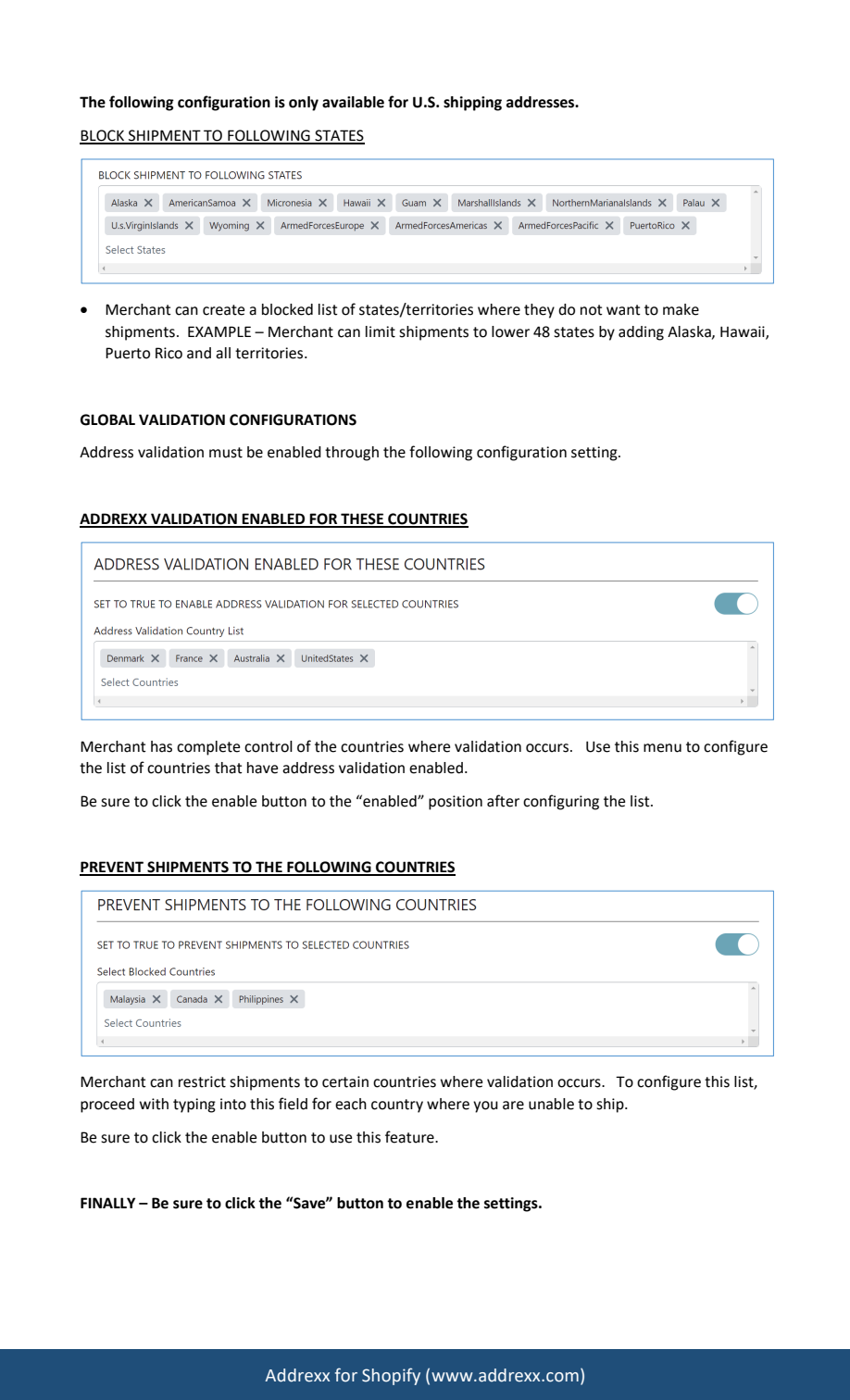
Enable validation for selected countries
- Configure the list under Addrexx validation enabled for these countries.
- Set the associated enable control to enabled.
- Save your changes.
Restrict shipments to selected countries
- Add countries to Prevent shipments to the following countries.
- Enable that restriction and save.
Restrict U.S. states and territories
Use the blocked-state list for U.S. shipping restrictions. Review the exact states and territories against your policy rather than assuming a country setting controls them.
Manual p. 7. Country validation and country shipment restrictions are different controls.
View original manual screenshots
05 · Shop Pay
Include saved shipping addresses in your tests.
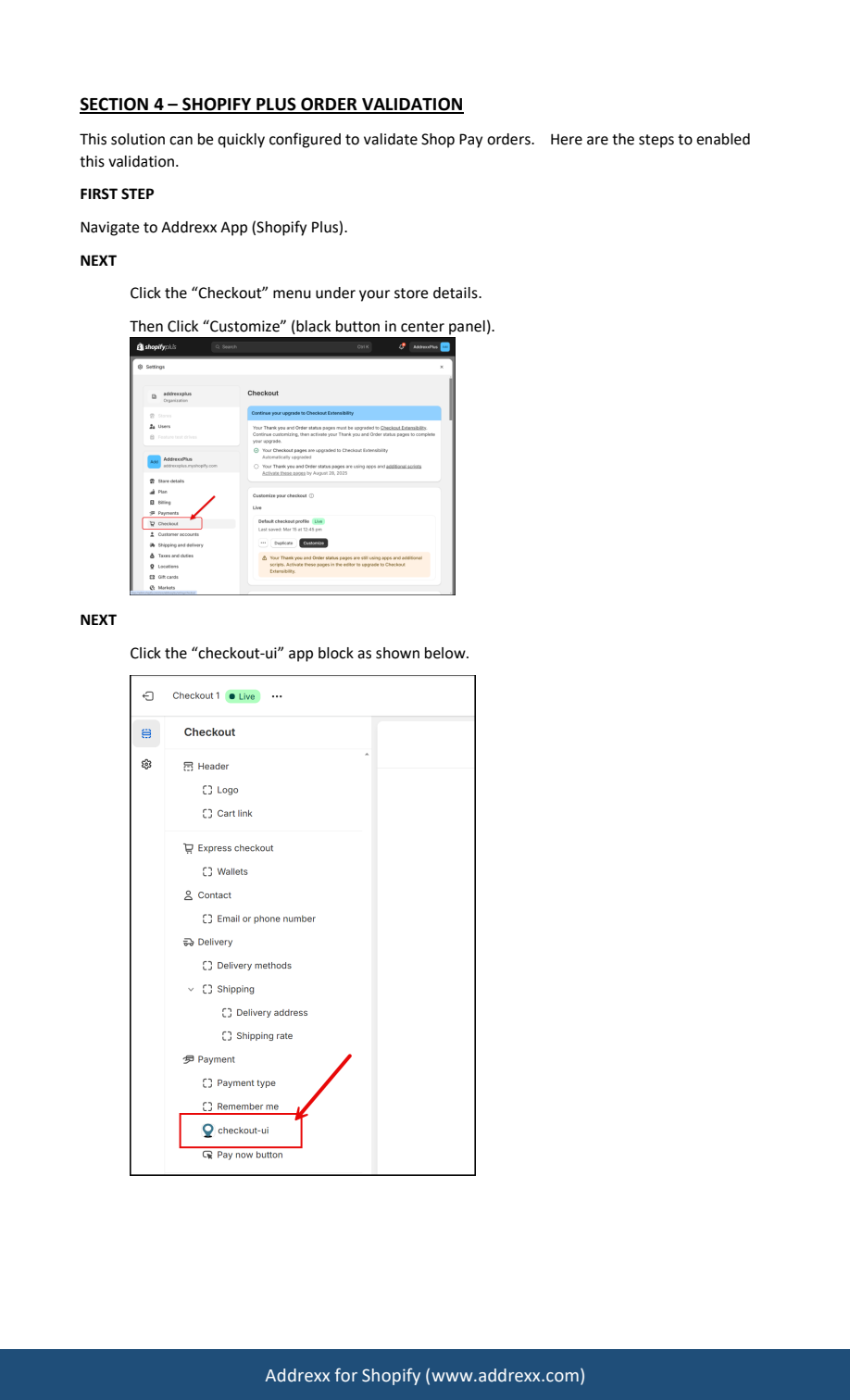
- Open Checkout → Customize in Shopify.
- Select the Addrexx checkout-ui app block.
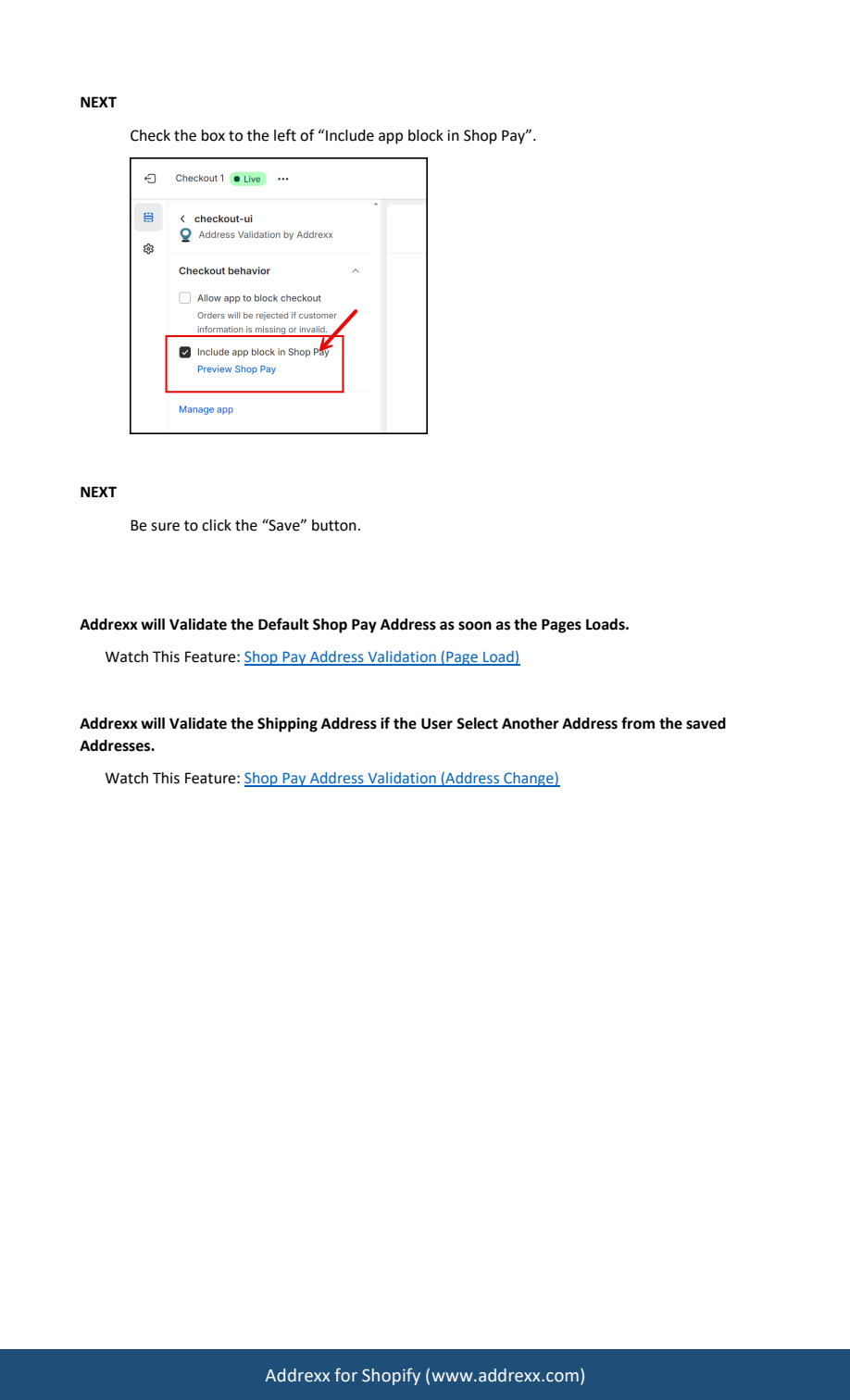
- Check Include app block in Shop Pay.
- Select Save.
The manual describes two validation triggers: the default Shop Pay address when the page loads, and the shipping address when a customer selects another saved address.
Test both Shop Pay paths before launch ↓
View original manual screenshots
06 · Before launch
Walk through the complete checkout.
Use controlled test data and relevant examples for your chosen rules. These checkboxes are a temporary checklist in this page; they do not configure your Shopify store.
Test standard Shopify Plus checkout and Shop Pay separately. Accept a suggested correction and inspect the resulting shipping address. Validation helps identify address issues; it is not a delivery guarantee.
07 · Troubleshooting FAQ
Quick answers when something is unclear.
Do I need Shopify Plus?
This guide covers the Shopify Plus checkout extension. In the Addrexx dashboard, configure the Shopify Extension (Shopify Plus Only) settings described in the manual.
Is installing the app enough?
No. Add the Address Validation by Addrexx checkout-ui app block to the relevant checkout, position it, and save. Then configure and save your validation rules.
Where should I put the checkout app block?
The manual places checkout-ui below the shipping-address fields: in the Delivery area for one-page checkout and below Shipping address in the Information area for three-step checkout. Use the screenshots in the checkout section to identify the intended placement.
Why are there separate U.S. and international settings?
The manual describes independent rule configurations for U.S. and international shipping addresses. Review both sets so the rules match your shipping policies.
Is missing-apartment detection international?
No. The manual identifies missing apartment, suite, and unit checks as a U.S.-address feature.
Does an accepted correction update Shopify?
Yes. When the customer accepts a suggested correction, the Shopify shipping address is updated. This is checkout address validation, not address autocomplete.
Why is validation not running for a country?
Check that the country is in the validation-enabled country list, that the associated enable control is on, and that you saved the dashboard. Also check that the checkout app block is present in the checkout you are testing.
Are enabled countries and blocked countries the same setting?
No. One list controls where address validation runs; another controls countries to which you want to restrict shipments. Review each list and its enable control separately, then save.
How do I turn on Shop Pay validation?
In the checkout editor, select the Addrexx checkout-ui app block, check Include app block in Shop Pay, and save. The manual describes validation of the default address on page load and when the customer selects another saved shipping address.
What should I check if a rule change has no effect?
Confirm that you edited the Shopify Plus extension settings, the correct U.S. or international rules, the country and enable controls, and that both the dashboard and checkout changes were saved. Then repeat the relevant test.
Does address validation guarantee delivery?
No. Use validation to identify address issues and let customers review corrections. Delivery still depends on the address, carrier, and fulfillment process.
Where can I get help?
Email support@addrexx.com for technical help. Include your Shopify store URL, the checkout path, the rule involved, and what happened. Do not send passwords, card details, or customer address data. Billing questions go to payments@addrexx.com.
No rule or FAQ matches that search. Try another phrase or contact technical support.
08 · Watch the features
Original video walkthroughs.
These links were extracted from the manual. They open the original hosted videos in a new tab; external availability has not been verified.
- Installation walkthrough ↗Manual p. 2
- Suggested address corrections ↗Manual p. 8
- Missing U.S. apartment details ↗Manual p. 8
- Missing house number ↗Manual p. 9
- Missing street name ↗Manual p. 9
- Restrict PO boxes ↗Manual p. 10
- Restrict private mailboxes ↗Manual p. 10
- Restrict U.S. regions ↗Manual p. 11
- Maximum address line 1 length ↗Manual p. 11
- Minimum address line 1 length ↗Manual p. 12
- Maximum address line 2 length ↗Manual p. 12
- Shop Pay: page load ↗Manual p. 14
- Shop Pay: saved-address change ↗Manual p. 14
09 · Get help
Talk to the right team.
Technical support
Installation, configuration, checkout validation, and Shop Pay.
support@addrexx.comBilling support
Pricing, invoices, and charges.
payments@addrexx.comInclude your store URL and a description of the issue. Do not include passwords, card details, or customer addresses.